Introduction: Understanding PC Factory Solutions
The term PC factory encompasses multiple aspects of computer management and maintenance-from performing a factory reset on your Windows device to using specialized conversion software like Format Factory, to backing up your Android phone before resetting it, or even commissioning a custom PC factory build through professional computer builders. Whether you're troubleshooting a sluggish system, preparing a device for resale, or seeking to understand comprehensive PC maintenance, understanding PC factory operations is essential.
A PC factory reset is one of the most powerful tools in your technical arsenal, capable of restoring your computer to its original state and eliminating accumulated digital clutter, malware and performance issues. According to recent data, system bloat and unnecessary software installations reduce PC performance by an average of 30-40% over two years of regular use. This comprehensive guide explores factory reset procedures, related software tools and professional PC factory building services available in 2025.
What is a PC Factory Reset?
A PC factory reset is the process of restoring your computer to its original manufacturer settings, effectively wiping all personal files, installed applications and system configurations. This differs from a standard system restart because it completely erases the operating system and reinstalls a clean copy from Microsoft's servers or your device's local storage.
Key Benefits of PC Factory Reset:
• Performance Restoration: Removes software bloat and restores your system to original speed and responsiveness • Malware and Virus Elimination: Clears deeply embedded threats that traditional antivirus software cannot reach • System Error Resolution: Fixes persistent crashes, freezes and update failures caused by corrupted files • Device Preparation: Ideal before selling, transferring, or repurposing your computer • Privacy Protection: Ensures complete removal of personal data before device transfer • Clean Slate: Eliminates years of accumulated registry errors and temporary files
How to Factory Reset Windows 11: Step-by-Step Guide for PC Factory Reset
Resetting your Windows 11 computer through a PC factory reset is simpler than ever. Here's the comprehensive process:
Method 1: PC Factory Reset Through Settings (Recommended)
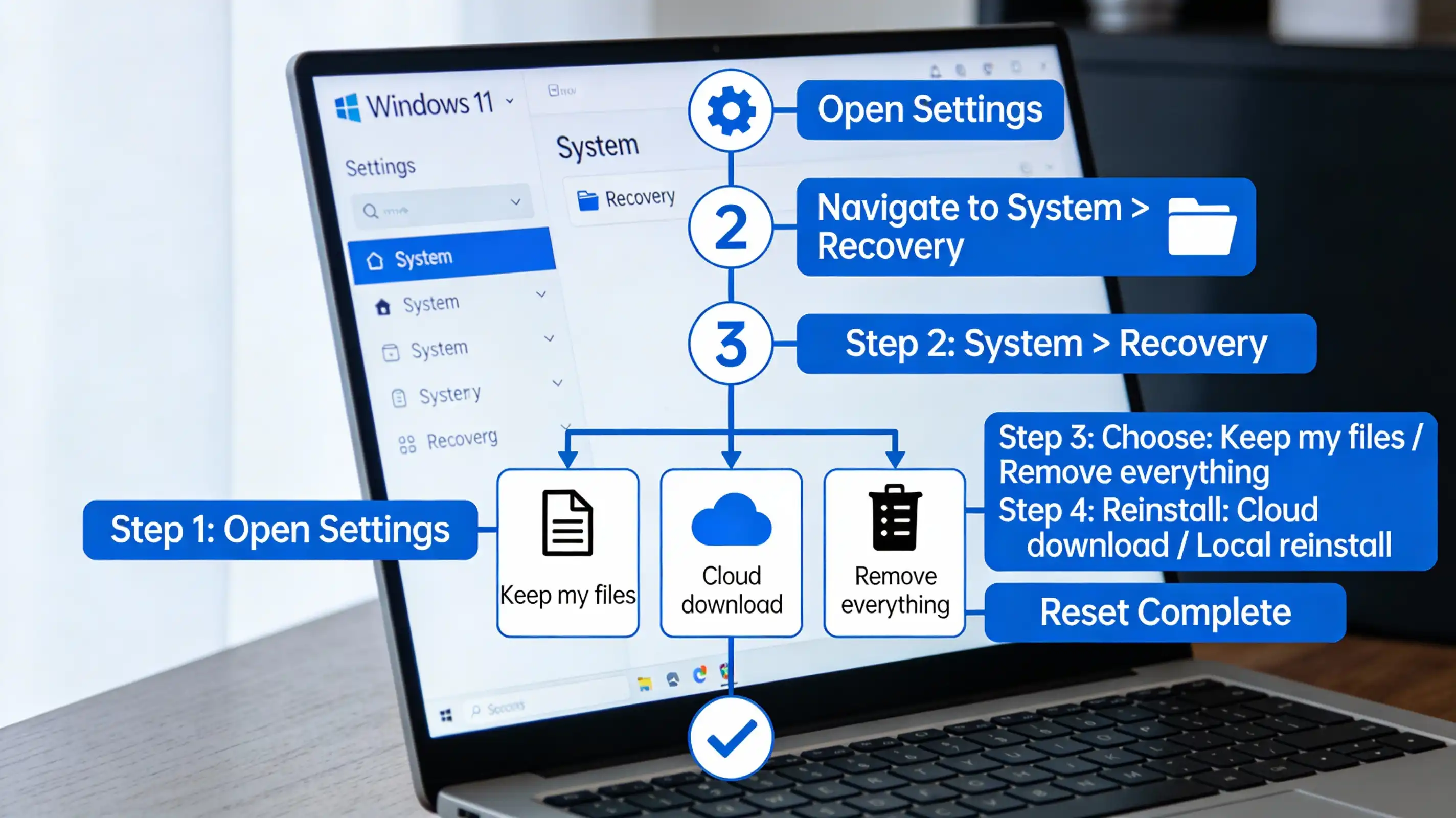
Step 1: Access Recovery Settings
- Click the Start Menu and select Settings (gear icon)
- Navigate to System from the left sidebar
- Click on Recovery option
- Under “Reset this PC” section, click Reset PC
Step 2: Choose Your Reset Type
- Keep my files: Removes apps and settings but preserves personal files
- Remove everything: Completely erases all files, apps and settings
Step 3: Select Reinstallation Method
Two options are available for your PC factory reset:
• Cloud download: Downloads a fresh Windows 11 installation from Microsoft servers (requires 4GB+ free space and stable internet) • Local reinstall: Uses existing system files on your device (faster, restores manufacturer customizations if applicable)
Step 4: Complete the Reset Process
- Review all settings and click Next
- Windows will generate a summary of changes
- Click Reset to initiate your PC factory reset
- Allow 20-60 minutes for completion (time varies based on hardware and internet speed)
- Your system will restart multiple times during the process
Method 2: Advanced PC Factory Reset with Data Erasure
For enhanced security when preparing devices for resale or transfer:
- Open Settings → System → Recovery
- Click Reset PC
- Select Remove everything
- Choose your download method
- Click Change settings (optional)
- Enable the Data erasure toggle for secure deletion
- Optionally enable Data drives toggle to erase additional connected storage
- Click Confirm and proceed with reset
How to Factory Reset Windows 10: PC Factory Reset Process
Windows 10 users can perform a similar PC factory reset with slightly different menu navigation:
- Open Settings from Start Menu
- Navigate to Update & Security
- Click Recovery from the left panel
- Under “Reset this PC” section, click Get started
- Choose Keep my files or Remove everything
- Select Cloud download or Local reinstall
- Review all information and click Reset
The Windows 10 PC factory reset process follows identical principles to Windows 11, with the primary difference being menu location rather than functionality.
How to Factory Reset PC Without Turning It On
If your system won't start or respond, you can perform a PC factory reset using Windows Recovery Environment:
- Turn on your computer and immediately press F11 repeatedly (timing varies by manufacturer)
- Some systems use F8 or F12 instead-check your device manual
- Select Troubleshoot → Reset this PC → Remove everything
- Choose your reinstallation method
- Allow the process to complete
Alternatively, you can create a Windows installation USB drive on another computer, boot from it and select Repair your computer → Troubleshoot → Reset this PC to initiate a PC factory reset even when Windows won't load.
Format Factory for PC: Software Solution Beyond PC Factory Reset
While a PC factory reset addresses system-level issues, Format Factory for PC is a specialized multimedia software that serves a completely different purpose-file format conversion and media processing.
What is Format Factory Download for PC?
Format Factory for PC is a free, multifunctional multimedia conversion tool that enables users to convert between virtually any video, audio, image and document formats. Available in 62 languages, Format Factory serves millions of users globally and represents a different aspect of PC optimization than a PC factory reset.
Format Factory for PC Features:
Video Conversion Capabilities: • Convert between MP4, AVI, 3GP, MKV, WMV and 50+ other formats • Adjust resolution, bitrate, aspect ratio and compression settings • Cut, crop and edit video segments within the application • Merge or split video files seamlessly • Extract audio from video files
Audio Conversion Tools: • Support for MP3, WAV, WMA, FLAC, AAC and 30+ formats • Batch audio conversion for multiple files simultaneously • Audio extraction from video or DVD sources • Bitrate and sample rate customization • Audio merging and splitting functionality
Document Processing: • Convert PDFs to DOCX, XLSX, HTM, MOBI, EPUB and AZW3 formats • Encrypt and decrypt PDF documents • Merge, split and compress PDF files • Extract images directly from PDF documents
Advanced Capabilities: • DVD and Blu-ray disc extraction and conversion • Repair corrupted video and audio files • Download videos from YouTube, Youku and similar platforms • Batch processing of multiple files simultaneously • WebP and HEIC image format support (modern compression standards)
Format Factory Download for PC: 64-Bit Version
The latest Format Factory for PC 64-bit version (V5.21.0.0, updated May 28, 2025) offers optimized performance on modern systems:
Installation Process:
- Download Format Factory from official sources (official website or reputable mirrors)
- Run the installer as Administrator
- Select language during setup (62 available options)
- Choose installation location
- Enable “Add to system context menu” for convenient right-click access
- Complete installation (file size: ~131MB)
How to Backup Android Phone to PC Before Factory Reset
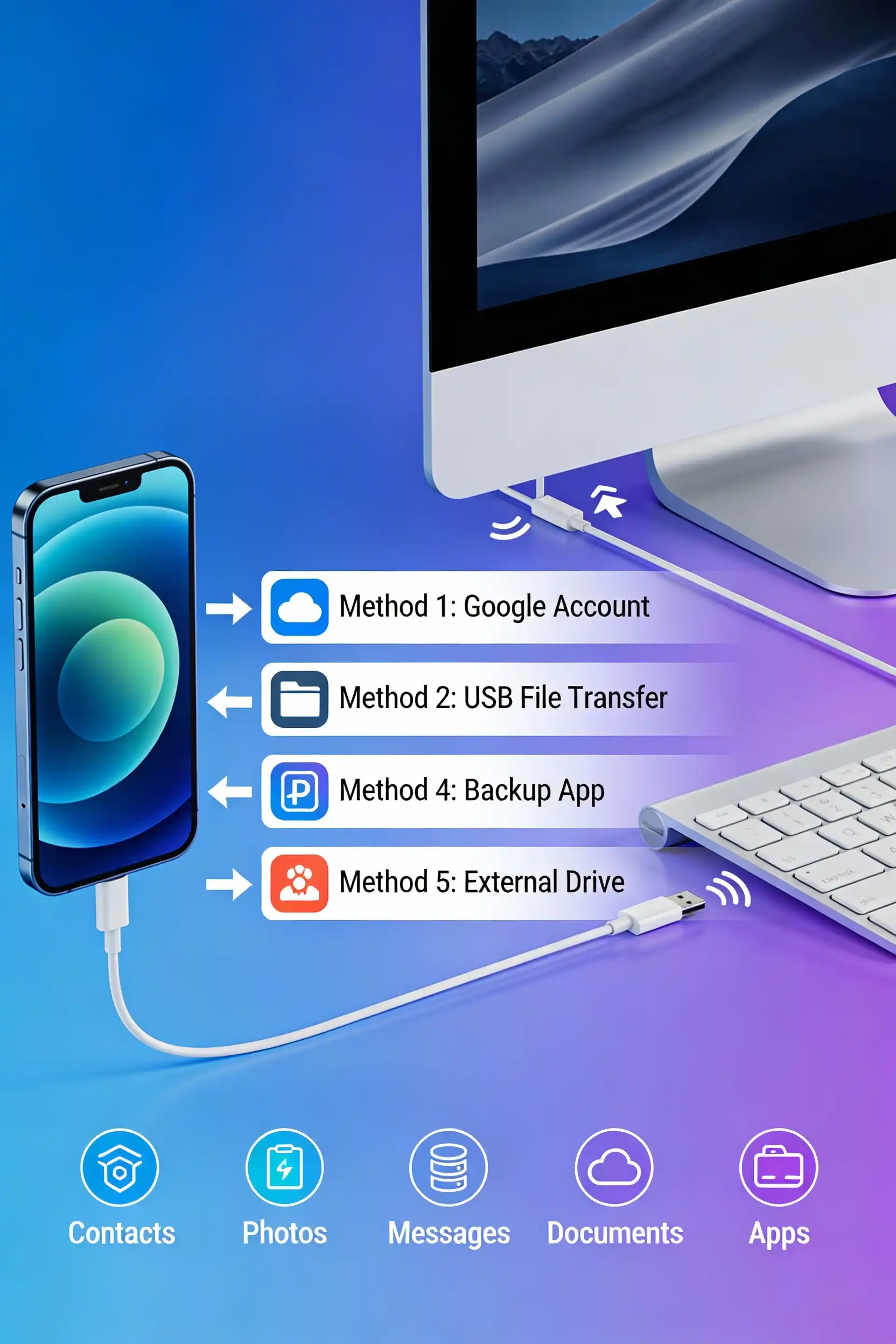
Before performing a PC factory reset on your Android device, proper backup is essential. Unlike your Windows computer, Android phones require specific preparation to avoid data loss.
Method 1: Backup Using Google Account (Recommended)
This method syncs your Android data with Google's cloud servers:
- On your Android phone, go to Settings → Google → Manage your Google Account
- Click the Data & Privacy tab
- Scroll down and click Download or delete your data
- Select Create new archive on the Google Takeout page
- Check the data you want to backup (Contacts, Calendar, Gmail, Photos, etc.)
- Click Create export
- Google will prepare your data archive
- Download the backup to your PC
- Store securely on your computer or cloud storage
Method 2: USB File Transfer (Quick File Backup)
For faster backup of photos and documents:
- Connect your Android phone to PC using a USB cable
- Enable USB Debugging in Developer Options (if required by your phone)
- Navigate to your phone's file system on the PC
- Manually copy desired folders (DCIM, Documents, Downloads) to your PC
- Verify all files transferred successfully
- Safely eject your phone
Method 3: Professional Android Backup Tools
For comprehensive Android backup including apps and settings:
Using DroidKit or Similar Android Manager:
- Download and install professional Android backup software on your PC
- Connect your Android phone via USB cable
- Enable USB Debugging when prompted
- Select “Backup” or “Data Manager” mode
- Choose data types to backup (13+ data categories supported)
- Initiate backup process
- Verify successful completion before proceeding with PC factory reset
Critical Data to Backup Before Android Factory Reset:
• Contact information and call logs • Text messages and chat conversations • Photos and videos • Documents and downloaded files • Application data (WhatsApp, banking apps, etc.) • Calendar events and reminders • Email accounts and passwords (save securely) • Authentication codes for two-factor verification
Mobile Factory Reset Software for PC: Android Reset Tools
If you need to perform a factory reset on your Android device from your computer, specialized mobile factory reset software for PC provides convenient solutions:
Best Android Mobile Factory Reset Software for PC (Free Options):
1. Tenorshare 4uKey for Android • Removes screen locks without requiring passwords • Bypasses Samsung Google Factory Reset Protection (FRP) • Compatible with 6000+ Android devices • Doesn't require USB Debugging to be pre-enabled • Up to 99% success rate • Works with Samsung, Xiaomi, Redmi, Vivo, OPPO, Realme, OnePlus
2. iMyFone LockWiper (Android) • Factory reset Android phones without password • Works with Android 5.0 and later versions • No additional setup requirements • Convenient for non-technical users • Wide device compatibility across all manufacturers
3. Android Multi Tools (Free Alternative) • Open-source solution for Android factory reset • Lower security than premium tools • Basic functionality without advanced features • Requires technical knowledge
How to Factory Reset Android Using PC Software:
- Download and install Android reset software on your Windows or Mac PC
- Connect your Android phone to the computer via USB cable
- Launch the application and select “Factory Reset” option
- Choose your Android device model from the list
- Allow automatic download of device-specific data package
- Follow on-screen instructions carefully
- Confirm factory reset action (warning: data will be deleted)
- Wait for process completion (typically 5-10 minutes)
- Disconnect your phone and verify reset success
PC Factory Custom Build Services: Professional Computer Building
Beyond software-based PC factory resets, professional PC factory and custom PC building services represent the pinnacle of personalized computer solutions. Custom PC factory builders design, assemble and optimize computers for specific use cases.
Types of PC Factory Build Services Available:
Express ProBuild Service: • Basic assembly and component integration • OS and driver installation • Stability testing (OCCT verification) • 90-day labor warranty • 1-year parts warranty • Same-day service when ordered before 4 PM • Entry-level PC factory option for budget-conscious builders
Premium Custom Water-Cooling Build: • Soft-tube or hard-tube custom water cooling systems • Advanced thermal management for high-performance systems • Professional cable management and aesthetics • Expert-level assembly requiring 2-7 days • Includes BIOS updates to latest manufacturer versions • 1-year antivirus included • Hands-on learning experience available
Ultimate Gaming and Workstation Build: • High-performance GPU and CPU configurations • Custom lighting and RGB integration • Extreme overclocking preparation • iFixit Narwhal toolkit included • Guided assembly with expert technician • 90-day labor warranty + manufacturer parts warranty • Professional cable routing and optimization
What's Included in Professional PC Factory Custom Builds:
✓ Assembly of all core PC components (CPU, GPU, RAM, SSD)
✓ Installation of CPU cooler or custom water cooling
✓ Operating System (Windows 11/10) installation and optimization
✓ Latest driver updates for all components
✓ BIOS updates to manufacturer's latest version
✓ OCCT stability testing (48-72 hours for premium builds)
✓ 1-year antivirus software (ESET NOD32 or equivalent)
✓ Compatibility verification before assembly
✓ 90-day labor warranty for assembly quality
✓ 1-year parts warranty on manufactured defects
✓ Remote and in-store diagnostics support
The PC Factory Advantage Over Pre-built Systems:
Professional PC factory services offer significant advantages compared to mass-produced prebuilt computers:
• Customization: Every component selected to match your specific needs and budget • Performance: Optimized builds deliver 15-25% better performance than equivalent prebuilts • Compatibility Assurance: Expert verification prevents component conflicts • Warranty Coverage: Comprehensive coverage through both builder and manufacturer • Upgradeability: Custom builds designed for future component upgrades • Cost Efficiency: Better value than boutique prebuilts with similar specs • Expert Support: Access to technicians for optimization and troubleshooting
Forex Factory Download for PC: Financial Trading Tools
While “Forex Factory” differs from PC factory reset topics, it's worth noting that Forex Factory is a financial platform for currency trading. The Forex Factory app download for PC provides economic calendars, trading signals and market analysis-completely unrelated to system resets or custom PC building.
Complete PC Factory Reset Checklist: Before You Begin
Pre-Reset Preparation (Essential Steps):
Backup Critical Data: □ Create complete backup of important documents, photos and videos □ Export browser bookmarks and saved passwords (store securely) □ Backup email accounts and authentication codes □ Save software license keys and registration information □ Download portable versions of essential applications □ Backup cloud configuration files and application settings
Security Considerations: □ Ensure your computer is connected to a reliable power source (plugged in) □ Verify stable internet connection for cloud download option □ Disable VPN or proxy services that might interrupt downloads □ Note your Windows product key (if using separate licensing) □ Document your WiFi password for post-reset reconnection
Pre-Reset Assessment: □ Confirm you have administrator access rights □ Close all running applications and background processes □ Disable antivirus software temporarily (won't interfere with reset) □ Clear sufficient storage space (20+ GB recommended) □ Check available storage on USB drive if using local reinstall
Post-PC Factory Reset Tasks:
Immediate After-Reset Steps: □ Reconnect to WiFi network □ Log in with Microsoft Account or Local Account □ Run Windows Update for latest patches (30-90 minutes) □ Install latest chipset and GPU drivers □ Reinstall antivirus/security software □ Restore backed-up files from external storage □ Reinstall essential applications from trusted sources
System Optimization Post-Reset: □ Disable unnecessary startup programs □ Configure privacy and security settings □ Set up cloud backup (OneDrive, Google Drive) □ Restore browser bookmarks and extensions □ Reconfigure email clients □ Update application licenses
Common PC Factory Reset Issues and Solutions
Issue 1: Reset Process Stuck or Frozen
Solutions: • Press and hold the power button for 10 seconds to force restart • Attempt reset again from recovery environment • If stuck on 0%, unplug external devices except keyboard/mouse • Use cloud download method instead of local reinstall • Create Windows installation USB on another PC and boot from it
Issue 2: Blue Screen During PC Factory Reset
Causes and Fixes: • BSOD indicates potential hardware issues • Disconnect all USB devices except essential ones • Remove external hard drives temporarily • Check hard drive health with SMART diagnostics • Try local reinstall instead of cloud download • Contact manufacturer if errors persist
Issue 3: Lost Product Key After Reset
Recovery Methods: • Check your Microsoft Account settings (online account) • Look for key in original Windows email receipt • Contact Microsoft Support with proof of purchase • Check motherboard BIOS for embedded digital license • Use key recovery tools if Windows is unactivated
Issue 4: Slow Performance After PC Factory Reset
Common Causes: • Windows Update still installing background updates • Missing chipset or GPU drivers • Antivirus software performing initial scan • Insufficient RAM for running applications • Hard drive indexing is active (wait 24 hours)
Solutions: • Run Windows Update completely • Install manufacturer drivers from support websites • Check Task Manager for resource-heavy processes • Disable unnecessary background services • Perform clean boot to identify problematic software
Advanced PC Factory Reset Alternatives
Snapshot-Based Recovery Technology
Instead of complete factory reset, modern systems support snapshot recovery:
• Create system restore points before major changes • Restore to previous snapshots in seconds instead of hours • Preserves important data while eliminating recent problems • Maintains system integrity better than full reset
How to Enable System Restore:
- Open Settings → System → About → Advanced system settings
- Click “System Protection” tab
- Select your main drive and click “Configure”
- Enable “Turn on system protection”
- Manually create restore points before software installations
Automated Baseline Restoration
Enterprise and advanced users employ baseline restoration:
• Establishes clean system state as baseline • Automatically restores to baseline at specified intervals • Immune spaces preserve critical configurations • Prevents malware persistence between sessions • Ideal for shared or public-access computers
Recommended Tools and Resources for PC Factory Operations
Free Utilities for Pre-Reset Cleanup:
Tool Purpose Download
| CCleaner | Temporary file removal | ccleanercloud.com |
| Uninstall Tool | Complete software removal | crystalmark.info |
| Speccy | Hardware information | speccy.piriform.com |
| DBAN | Secure drive wiping | dban.org |
| Windows Repair | Registry cleanup | tweaking.com |
Recommended Backup Solutions:
• Microsoft OneDrive - Integrated cloud backup (1TB free with Microsoft 365) • Google Drive - 15GB free storage for documents and photos • Acronis True Image - Complete system disk imaging • Backblaze - Unlimited cloud backup ($14/month) • External SSD - 1TB portable storage (~$60-80)
Video Guide: How to Factory Reset PC Windows 11
For visual learners, comprehensive video tutorials demonstrate PC factory reset processes. Professional YouTube channels provide step-by-step demonstrations showing:
• Real-time reset process from start to finish • Handling common errors and obstacles • Post-reset optimization techniques • Backup and restore procedures • Before/after performance comparisons
FAQ: PC Factory Reset and Related Topics
Q1: Will factory reset delete my files? A: It depends on your selection. Choosing “Keep my files” preserves documents, photos and videos while removing apps and settings. “Remove everything” erases all content completely.
Q2: How long does a PC factory reset take? A: Typically 20-60 minutes depending on internet speed, drive size and hardware. Cloud download method takes longer than local reinstall.
Q3: Can I use my computer during factory reset? A: No, your system will restart multiple times and be unusable throughout the process. Plan 1-2 hours of downtime.
Q4: What's the difference between cloud download and local reinstall? A: Cloud download gets fresh Windows files from Microsoft (slower but completely clean). Local reinstall uses existing files (faster, preserves manufacturer tools).
Q5: Do I need my product key after factory reset? A: If using a Microsoft Account, Windows 11 reactivates automatically. Separate product keys may require manual entry.
Q6: Is it safe to factory reset an old computer? A: Yes, factory reset safely clears data and prepares devices for resale. Use “Remove everything” option for complete data removal.
Q7: Can Format Factory and PC factory reset work together? A: These are separate tools. Use Format Factory before reset to convert media files, then perform factory reset for system maintenance.
Q8: Should I factory reset my Android before trading it in? A: Yes, absolutely recommended. Always backup first, then use device factory reset or professional PC factory mobile reset tools.
Conclusion: Making Informed PC Factory Decisions
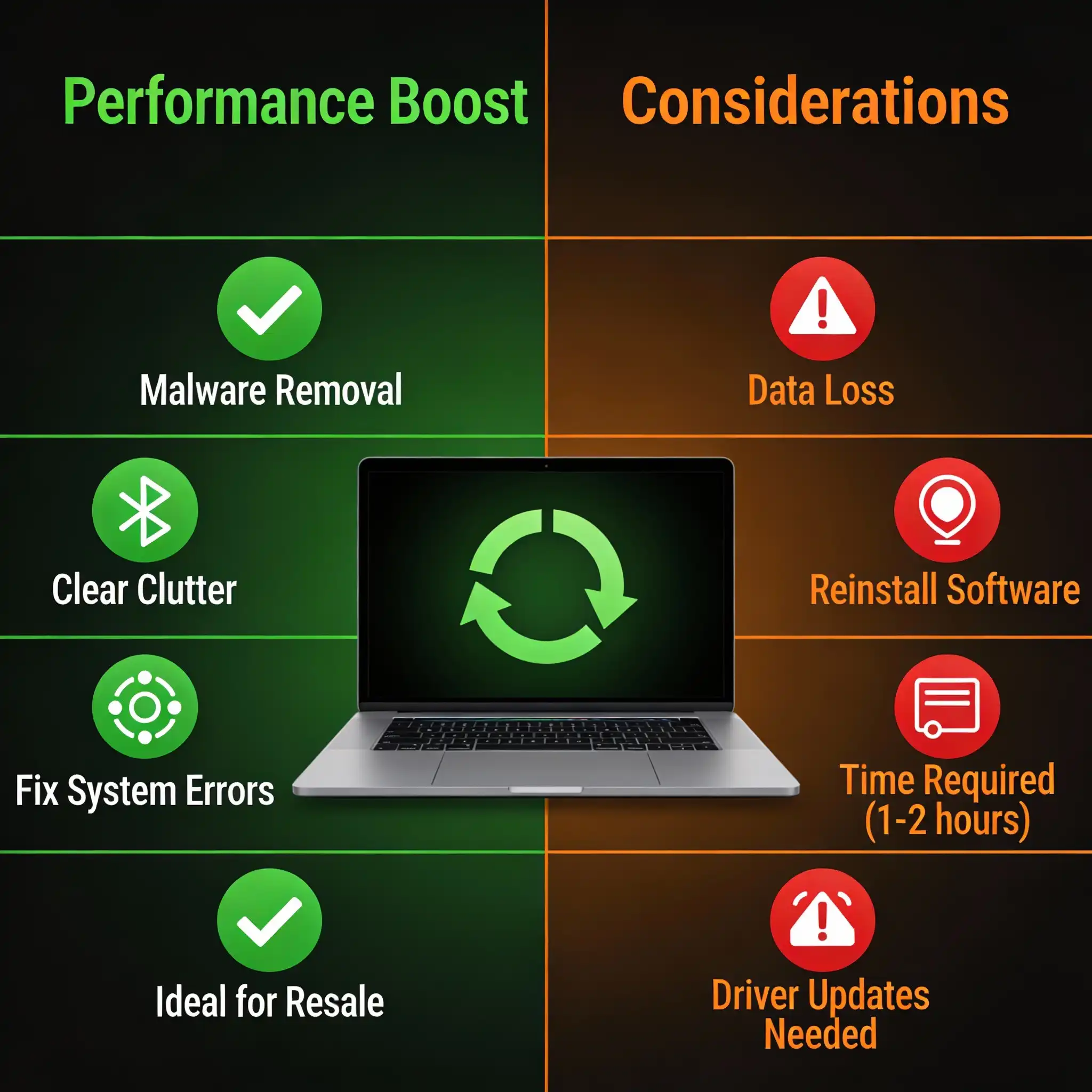
Whether you're performing a PC factory reset to eliminate malware and improve performance, using specialized tools like Format Factory for media conversion, backing up your Android phone before factory reset, or commissioning a professional custom PC factory build, understanding these processes empowers you to maintain optimal computing performance.
A PC factory reset represents one of the most effective troubleshooting tools available, capable of transforming sluggish systems into responsive machines. Professional PC factory custom building services provide personalized solutions for gaming, streaming and professional work. The key to success lies in thorough preparation-proper backups, understanding your options and following procedures carefully.
For your Computer Community business, offering guidance on PC factory services, custom builds and system optimization positions you as a trusted authority in comprehensive computer solutions. Whether clients need factory reset assistance, Format Factory software recommendations, or professional custom PC factory builds, comprehensive knowledge of these topics demonstrates expertise.
Take action today: backup your critical data, assess whether your system needs a PC factory reset and consider professional custom building services if you need high-performance specifications tailored to your specific use case.